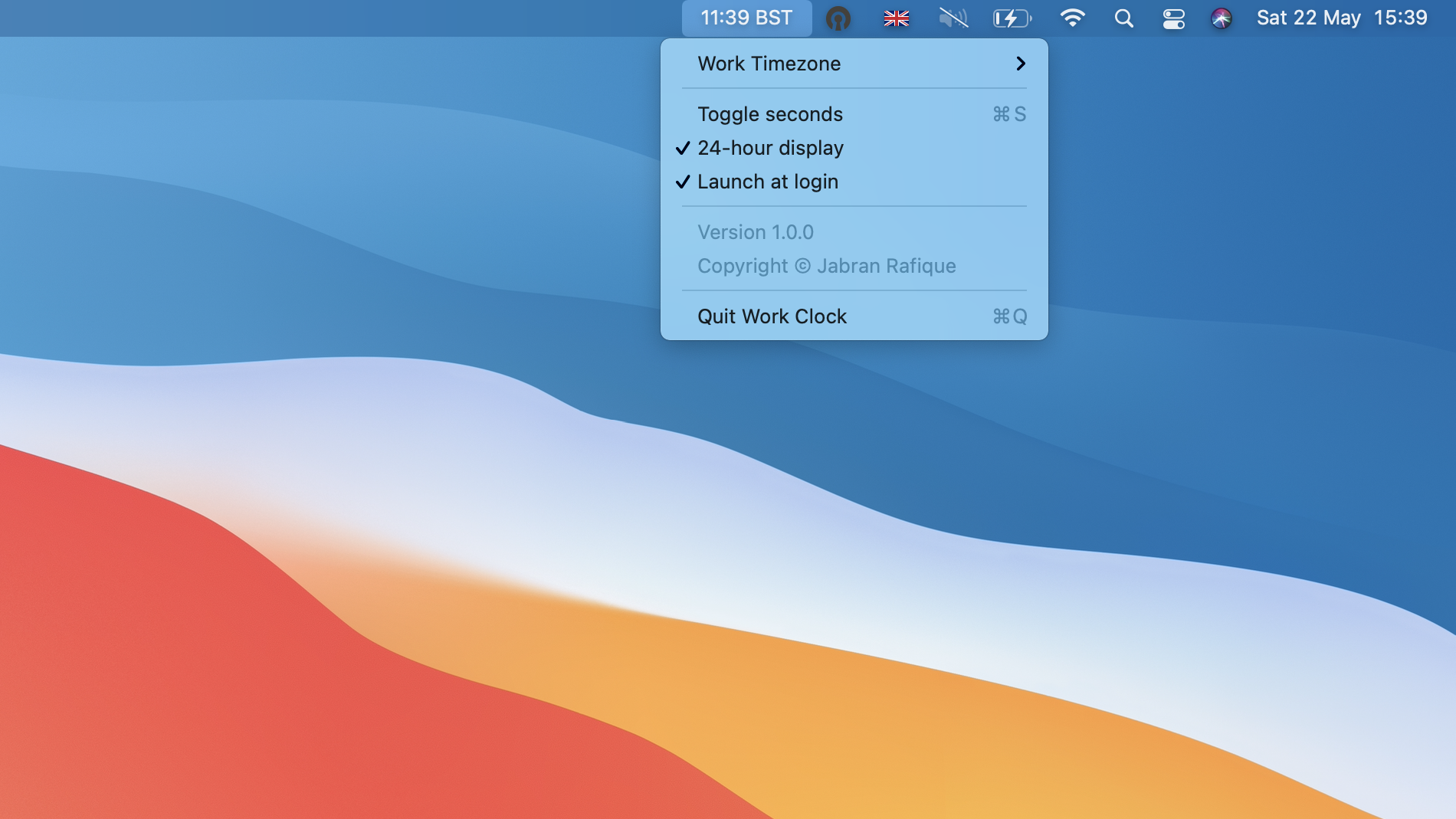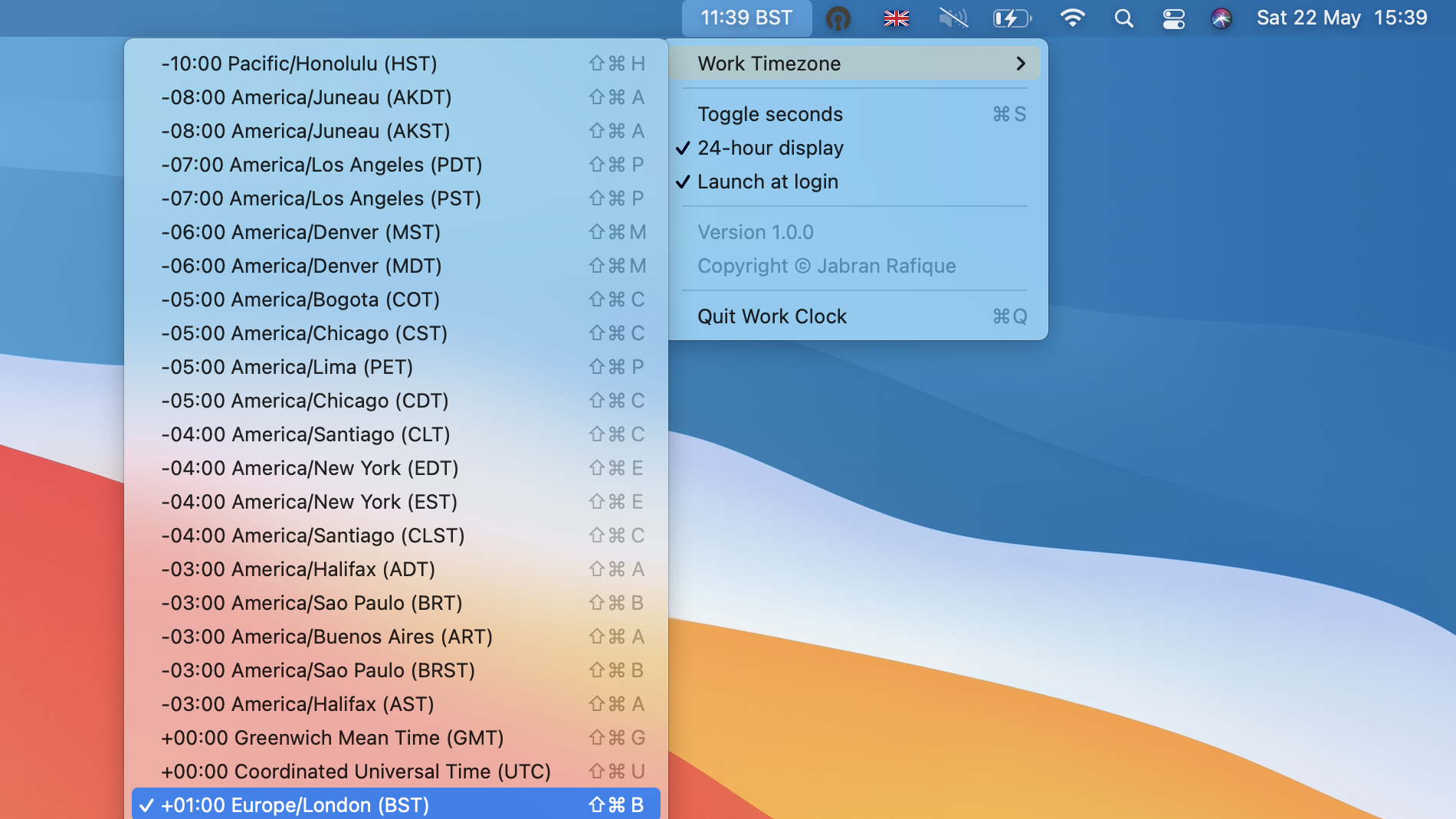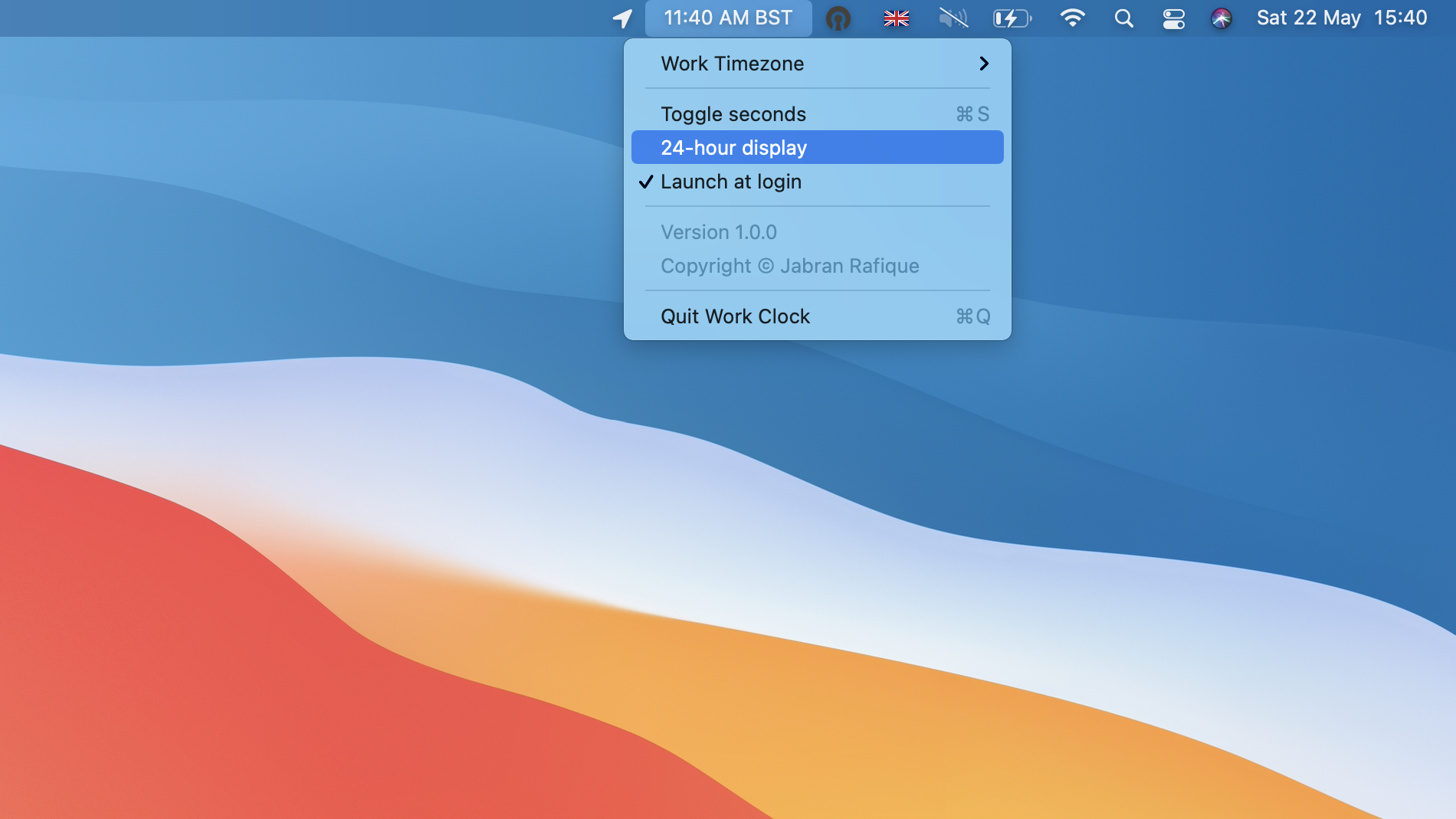
Work Clock displays the time for another timezone in macOS menubar. It's handy when you work remotely from a different timezone and need to keep track of the work clock when scheduling meetings or discuss time in messages or calls.
Work Clock requires macOS 10.13 or later. Work Clock is free to download and use.
Features
- Display time in 12-hour or 24-hour format
- Show/hide seconds
- Select a timezone from a list of 40+ timezones covering the whole world
Installation
- Download
WorkClock.dmgand open it. - Drag Work Clock into the Applications folder.
- Open Work Clock from Applications. Because the app is not notarized by Apple, macOS will block it the first time.
- Open System Settings → Privacy & Security, scroll down and click Open Anyway next to the Work Clock message, then confirm. On macOS 14 or earlier you can instead right-click the app, choose Open and confirm.
Alternatively, remove the quarantine flag from Terminal:
xattr -dr com.apple.quarantine "/Applications/WorkClock.app"Story
Recently it became difficult for me to work out the correct UK time while I was working remotely from Pakistan. I tried a few apps and macOS clock widget however none of those were satisfactory. I had to follow a few steps and clicks in order to view the current time for the UK.
So I created this app to solve the problem and also learned macOS development. I hope this helps other people with a similar problem.